

The Frustrating Reality of the Frozen Mouse Pointer
I still remember the exact moment my expensive computer completely gave up on me. I had just downloaded a brand new local AI model to help me sort through some heavy text documents. I excitedly double-clicked the start file, leaned back in my chair, and waited for the magic to happen. Within ten seconds, my cooling fans started screaming like a jet engine preparing for takeoff.
I grabbed my mouse to see what was happening, but the pointer was completely frozen on the screen. My entire system had locked up so badly that even my keyboard lights stopped blinking. I sat there in complete silence, realizing I had just lost two hours of unsaved work in my background windows. My highly capable desktop was completely brought to its knees by a single piece of software.
This is a painful reality for almost anyone trying to run advanced software on their personal machines today. You spend a lot of hard-earned money building or buying a great computer. You expect it to handle modern tasks without breaking a sweat. When it suddenly chokes and crashes, it feels like a massive betrayal of your investment.
The anxiety that comes with high memory usage completely ruins your productivity. You start holding your breath every time you hit the "generate" button. You become terrified to open a web browser or a music player at the same time, fearing that one extra click will trigger a total system collapse. Instead of enjoying the amazing power of modern technology, you feel like you are walking on eggshells inside your own house.
People just want their tools to work smoothly so they can focus on their actual creative ideas. Dealing with constant out-of-memory errors turns a fun afternoon project into a highly stressful troubleshooting nightmare. You end up spending more time reading error logs than actually getting any real work done.
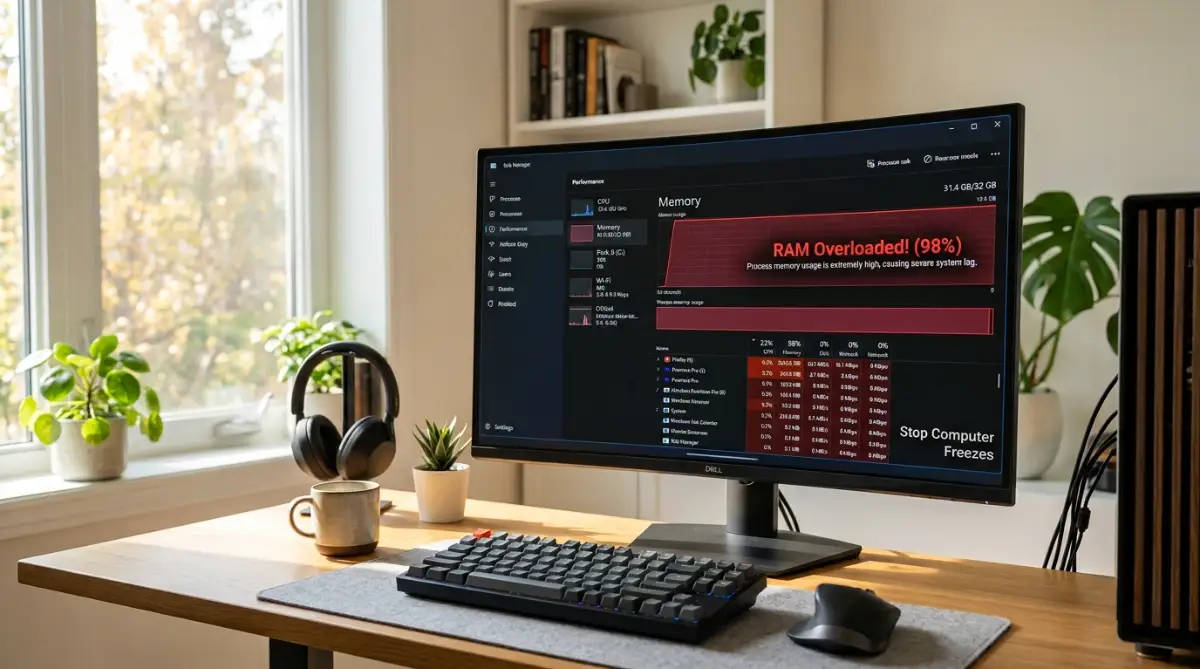
Why Your Computer Chokes on Advanced Tasks
To fix this massive headache, we first need to understand what is actually happening inside your machine. When you open a normal program, like a text editor, it barely takes up any space on your computer's short-term memory, which we call RAM. It is like placing a single piece of paper on a very large office desk.
However, running a local AI model is a completely different story. These models are essentially giant mathematical brains packed into a single file. When you turn one on, your computer has to pick up that entire massive brain and place it directly onto your desk all at once. If your desk is not big enough, the massive brain falls onto the floor, and your system completely crashes.
The computer does not know how to handle a situation where there is zero space left. It panics, freezes everything, and refuses to move until you force it to restart. Fixing this issue means we either need to clear off the desk, shrink the size of the brain, or get a little bit smarter about how we organize our workspace.
Clearing the Hidden Desk Clutter First
Before we even touch the complex settings of your new software, we have to talk about your background habits. Most people try to run heavy computational tasks while completely ignoring what else is happening on their machine. Your internet browser is easily the biggest offender in this category.
Modern web browsers are incredibly greedy when it comes to hoarding your system memory. If you have twenty tabs open in the background, your computer is actively keeping all of those web pages alive on your digital desk. This leaves very little room for anything else to operate properly.
You must treat your computer like a clean workspace before starting heavy tasks. Close every single application you are not actively using right now. This simple habit can instantly free up gigabytes of memory, giving your system the breathing room it desperately needs to function.
My Personal Realization: I used to think leaving a few browser tabs open would not hurt my local testing at all. I eventually realized those hidden tabs were secretly eating four gigabytes of my memory, causing my computer to crash right at the finish line. Once I started closing my browser completely, those annoying out-of-memory errors almost entirely disappeared.
The Magic of Shrinking the Brain
If your desk is completely clear and the software still crashes, the brain itself is simply too big. This is where a brilliant technical concept comes into play, and it is the most powerful tool you have. You do not have to buy more physical memory to solve this problem.
Instead, you can use a version of your model that has been intentionally shrunk down by developers. This process involves taking highly precise mathematical numbers and rounding them off to shorter numbers. By doing this, the entire file size of the software becomes massively smaller.
Think of it exactly like saving a photograph on your phone. You can save an image in a massive, uncompressed format that takes up huge amounts of storage. Or, you can save it as a normal JPEG file, which looks almost exactly the same to your eyes but takes up a fraction of the space.
Want to see a brilliant visual explanation of how shrinking these massive files actually saves your computer from crashing? Watch this excellent breakdown.
When you are looking to download a new model to your computer, always look for the smaller, rounded-off versions. These are often labeled with specific tags like "4-bit" or "8-bit" in their filenames. Choosing these smaller files is the absolute best way to ensure they fit comfortably inside your available memory.
You will barely notice any difference in the actual quality of the output. The responses will still be incredibly smart and helpful. However, your computer will suddenly run perfectly smooth, with no screaming fans and no frozen mouse pointers.
Splitting the Heavy Lifting Between Parts
Your computer actually has two different types of memory desks. One desk belongs to your main processor (the CPU), and the other desk belongs to your graphics card (the GPU). The graphics card desk is usually much faster, but it is often much smaller in physical size.
When you try to load a heavy task entirely onto the graphics card, it easily overflows and causes a crash. To prevent this, you can tell your software to share the load between both desks. This is an incredibly smart way to balance the pressure on your machine.
You can send the heaviest chunks of data to the fast graphics card, and leave the remaining pieces on your regular system memory. This prevents either side from becoming totally overwhelmed. The system works as a team, sharing the burden of the heavy mathematics.
Finding the Sweet Spot for Splitting
Setting this up requires a little bit of trial and error on your end. Most modern local interfaces have a simple slider that lets you choose how much data goes to the graphics card. If you push the slider all the way up, you might hit that dreaded memory limit again.
Start by moving the slider right to the middle. Watch your system resource monitor closely as you run a test generation. If your graphics card memory hits 90% full, stop adding more load to it immediately.
Leaving a small ten percent buffer is a golden rule for system stability. Your computer needs that tiny bit of extra room just to manage its own basic background tasks, like drawing your screen. Respecting that safety buffer will keep your system running completely stable for hours.
Taming the Context Window Monster
There is a hidden setting inside your software that quietly eats your memory without you even realizing it. It is known as the context window. This setting determines exactly how much text or data the software is allowed to remember at one single time.
If you set the context window to a massive number, the software reserves a huge chunk of your memory just in case you paste a giant document. It sets this space aside immediately, even if you only type a two-word sentence. This is incredibly wasteful and highly dangerous for limited systems.
Imagine carrying a giant, heavy backpack everywhere you go, just in case you need to carry a lot of books later. It exhausts your energy for no reason. You should only carry a big backpack when you actually plan to move a heavy load.
Keeping Your Memory Demands Tight
You need to actively manage this setting based on what you are doing right now. If you are just asking simple, short questions, turn the context setting all the way down. Your computer will instantly breathe a sigh of relief as gigabytes of memory are suddenly freed up.
Only increase this setting when you genuinely need the software to read a very long document or a large piece of text. Once that specific task is completely done, remember to turn the setting back down. Treating your memory like a precious resource is the best habit you can build.
By keeping your memory demands tight, you avoid the sudden spikes that cause hard crashes. Your software will actually respond much faster because it has less empty space to manage. It is a simple adjustment that makes a world of difference in your daily workflow.
The Danger of Generating Too Much at Once
Patience is a massive virtue when dealing with local computer tasks. It is very tempting to ask your machine to do five different things at the exact same time. You might want to generate three different responses or create four different outputs simultaneously.
This is known as increasing your batch size, and it is a guaranteed way to overload a normal desktop computer. Every single extra task you add multiplies the amount of memory required. If one task takes up half your desk, asking for two tasks will instantly push your system over the edge.
You must force yourself to work sequentially. Ask for one output, wait for it to finish completely, and then ask for the next one. Your computer handles single, focused tasks incredibly well.
If a specific output is not what you wanted, simply delete it and try again. Rushing the process by demanding multiple options at once will only result in a frozen computer. Taking your time actually saves you time, because you never have to deal with annoying hard reboots.
By deeply understanding how your computer manages its workspace, you regain total control over your machine. You stop being a victim of sudden crashes and start becoming a smart director of your hardware resources. With these foundational steps in place, you are ready to tackle even more advanced optimization strategies.
Next-Level Strategies for a Lightning-Fast Machine
Once you have mastered the basics of clearing your workspace and picking the right software size, you are ready for the professional tools. These advanced settings act as direct communication lines between you and your computer hardware. By tweaking just a few highly specific numbers, you can easily double the speed of your setup without buying a single new computer part.
You might feel intimidated by the complex menus inside your local software, but do not worry. You only need to focus on a handful of specific commands to see massive improvements. When you understand exactly what these numbers do, automating repetitive tasks for beginners suddenly becomes an incredibly fun and stress-free process.
The Power of Thread Management
Inside your computer’s main processor (the CPU), there are multiple tiny workers called "threads." By default, your local software will try to wake up every single worker and force them to carry the heavy load. This sounds like a great idea, but it actually creates total chaos inside the processor.
If twenty workers try to push a heavy box through a tiny doorway at the same time, nobody moves. According to hardware testing by the Massachusetts Institute of Technology (MIT) Computer Science and Artificial Intelligence Laboratory, overloading the processor threads actually slows down computational tasks dramatically.
To fix this, look for the "CPU Threads" setting inside your software interface. Count how many physical cores your processor actually has, and set the thread limit to exactly half of that number. By giving half the workers a break, the remaining workers actually move the data much faster and use significantly less memory in the process.
Utilizing Swap Memory the Right Way
Sometimes, despite your absolute best efforts, your local model simply needs a tiny bit more room than your hardware allows. When this happens, your computer tries to use your storage hard drive as an emergency backup desk. This is known as "swap memory."
A standard, old-school mechanical hard drive is far too slow for this process, which is why older computers completely freeze when they run out of RAM. However, if you have a modern, high-speed Solid State Drive (NVMe SSD), you can safely rely on this emergency backup. You just need to configure it correctly in your computer's main system settings.
Go into your operating system's advanced performance settings and manually increase the size of your paging file or swap space. By giving the system a larger, faster emergency safety net, you prevent those terrifying hard crashes. Your generation might run slightly slower when it hits the swap space, but it will finish the job instead of giving up completely.
Automating the Cleanup Process
One of the biggest professional secrets in local AI management is understanding memory leaks. Sometimes, when a software finishes generating a response, it forgets to clean up the workspace. Over a few hours, the desk gets filled with old, useless junk data, slowly suffocating your machine.
Yo