The Spinning Wheel of Morning Despair
I totally get the frustration. You sit down with your morning coffee, turn on your computer, and just stare at a black screen for what feels like an eternity. Then comes the spinning blue circle of doom, freezing your screen before you even get to check your email. Before you throw your laptop out the window or waste a thousand dollars on a brand new one, hold on a second. I am going to show you how I brought my own sluggish computer back to life for free, just by clearing out some hidden digital junk.
You press the power button on your computer and take a sip of your drink. You wait a few seconds, expecting the login screen to pop up instantly.
Instead, the screen stays completely black for an uncomfortable amount of time. Finally, the desktop appears, but your nightmare is just beginning.
You click on your web browser, and nothing happens. Ten seconds later, the dreaded spinning blue circle appears, mocking you while your machine struggles to open a simple blank webpage.
By the time you actually start working, your morning motivation is completely gone. A sluggish computer does not just waste your time; it actively drains your emotional energy and ruins your mood.
You might feel a sudden urge to throw the machine out of the window and buy a brand new one. You assume the internal parts are just too old and broken to keep up with modern software.
A few months ago, I was literally a click away from spending a thousand dollars on a brand new laptop because my current one was taking ten full minutes just to open an email. I used to sit at my desk every single morning feeling incredibly stressed out while staring at that awful spinning circle on my screen. It honestly felt like my machine was completely dead, but I soon realized I just needed to clean up my own digital mess.
But before you spend a thousand dollars on a new machine, you need to hear a massive secret. Your computer is likely not broken or physically outdated at all.
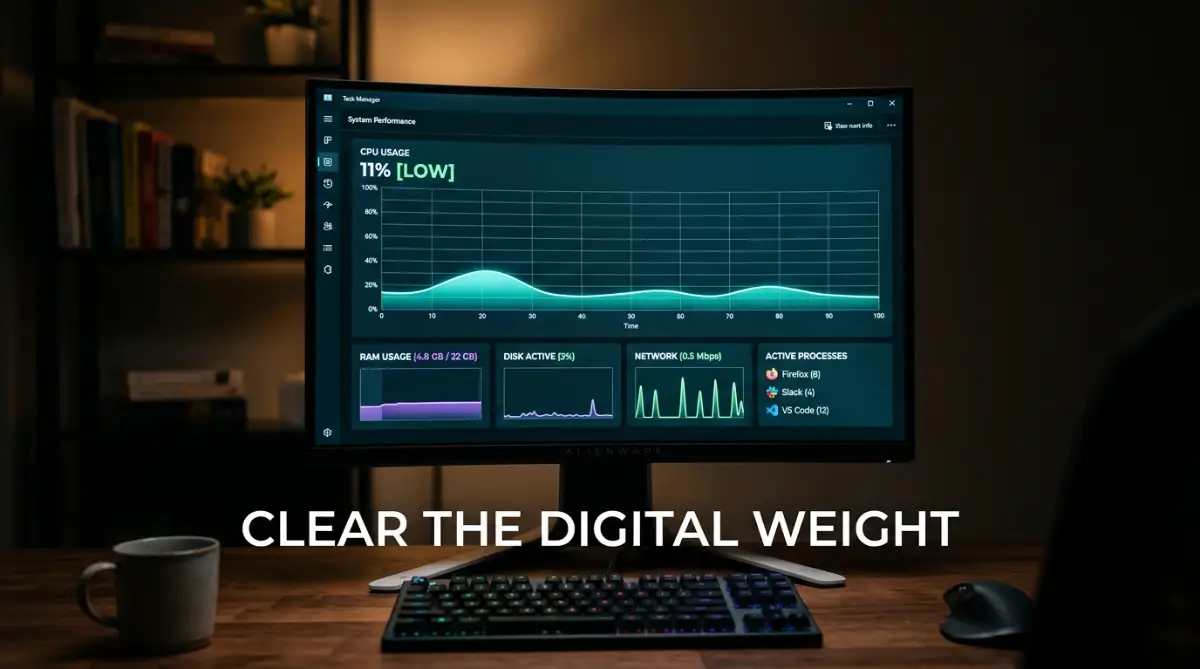
It is simply suffocating under a massive pile of invisible digital garbage. Today, I am going to show you exactly how to remove that heavy weight and restore your machine to its original, lightning-fast glory without spending a single penny.
The 60-Second Speed Up Plan
- Kill the startup apps: Stop everything from opening the exact second you turn on your PC.
- Close your unused tabs: Stop hoarding twenty open tabs in Google Chrome; bookmark them instead.
- Turn off fancy animations: Trade those transparent window effects for raw computer speed.
- Ditch fake PC cleaners: Never pay for shady software that claims you have "thousands of critical errors."
Diagnosing the Invisible Digital Weight
To fix a slow machine, we first need to understand how your computer actually thinks. Your computer is essentially an incredibly fast digital office worker.
When you first bought the machine, this digital worker had a completely empty desk and a quiet room to focus on your tasks. As months and years go by, you ask this worker to remember more things, install more programs, and run more background tasks.
Eventually, the worker's desk is buried under a mountain of messy paperwork. Let us systematically clear off that desk using smart, proven software adjustments.
Taking Control of the Morning Rush (Startup Programs)
This is the absolute biggest offender when it comes to a slow computer. Every time you download a new application, it usually gives itself special permission to start running the exact second you turn on your machine.
Skype, Spotify, cloud storage drives, and gaming launchers all fight for the front of the line when your computer boots up. Imagine trying to walk into your office while twenty different people immediately start shouting your name.
Your computer processor gets completely overwhelmed by these simultaneous requests. It freezes up because it cannot provide enough electricity and memory to twenty apps at the exact same time.
The Free Fix: We need to aggressively manage this morning rush. If you use Windows, press Ctrl + Shift + Esc on your keyboard to instantly open the Task Manager.
Click on the tab labeled "Startup" at the top of the window. You will see a long list of every single application that turns on automatically.
Look at the column labeled "Startup impact." Right-click and disable anything that you do not actively need the very second you sit down to work.
If you want to use Spotify later in the day, you can just click the icon yourself. Disabling these apps does not delete them; it simply tells them to wait quietly until you actually call for them.
I used to make the terrible mistake of letting every single app I downloaded start automatically, thinking it would somehow save me time later in the day. My biggest realization was that turning off things like Skype and cloud drives in the startup menu made my computer boot up almost instantly, which completely cured my morning frustration.
Myth vs. Fact: Computer Startup Apps
- Myth: If I disable Spotify or Skype from the startup menu, the app gets deleted from my computer completely.
- Fact: Not at all! The app is still sitting safely on your hard drive. You are just telling it to stay asleep until you actually click on it, saving your computer a ton of heavy lifting in the morning.
Understanding the Physical RAM Desk Analogy
To make your computer faster, you must understand how it manages its short-term memory, known as RAM (Random Access Memory).
Think of your hard drive as a massive, heavy filing cabinet sitting in the corner of the room. Think of your RAM as the actual physical desk where you do your daily work.
When you open a document or a web browser, your computer walks over to the filing cabinet, grabs the file, and places it directly on your RAM desk. The bigger your desk, the more programs you can look at simultaneously without putting anything away.
When your computer becomes incredibly sluggish, it means your desk is completely full. You have too many heavy browser tabs and applications open, leaving no empty space to work.
When the desk is full, your computer does something desperate called "Paging." It starts using the slow, heavy filing cabinet as a temporary desk, which ruins your overall speed.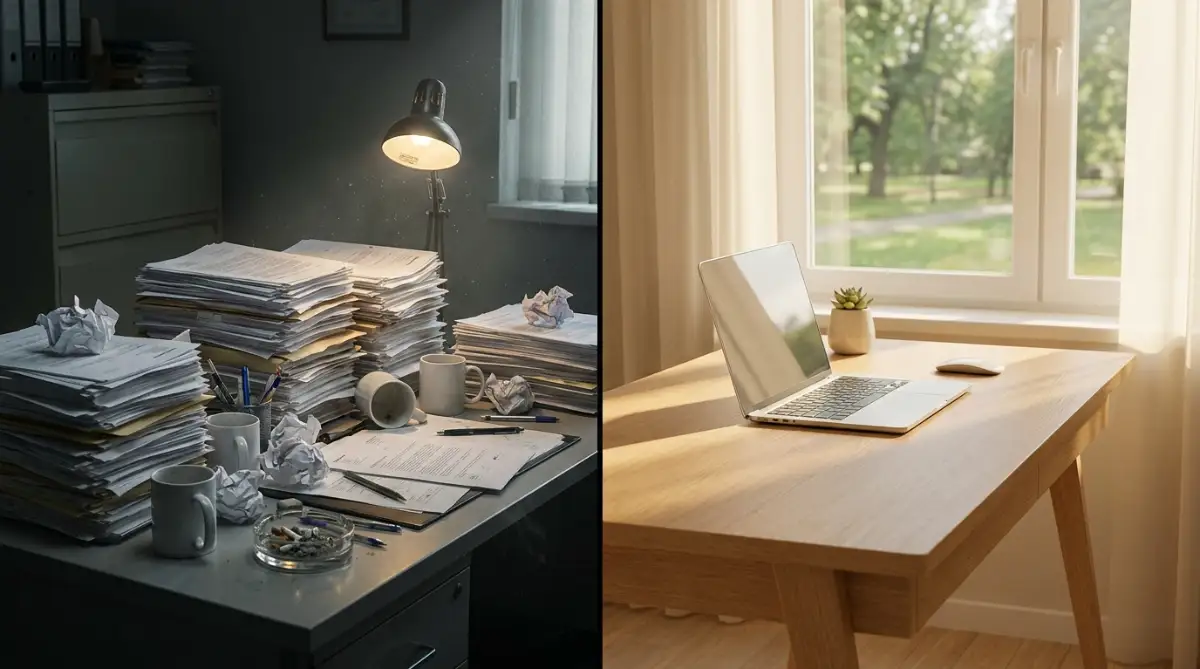
Taming the Web Browser Memory Monster
Web browsers, especially Google Chrome, are absolutely notorious for eating up all your available RAM desk space. Every single tab you leave open is treated as a completely separate, active program by your computer.
You might think leaving twenty tabs open is a great way to multitask. In reality, you are forcing your computer to constantly supply memory to nineteen webpages you are not even looking at right now.
The Practical Solution: You must change how you manage your internet browsing habits. First, close any tab you have not actively read in the last thirty minutes.
If you are afraid of losing an important article, just bookmark it. Bookmarks cost absolutely zero active memory.
Secondly, you need to audit your browser extensions. Those tiny little icons sitting next to your search bar are constantly running background scripts.
Coupon finders, grammar checkers, and fancy ad-blockers all require a continuous stream of system memory. Type chrome://extensions in your address bar and completely remove any extension you do not use on a daily basis.
Stripping Away the Fancy Visual Illusions
Both Windows and Mac operating systems are designed to look incredibly pretty right out of the box. They use smooth fading animations when you open a window.
They place highly detailed drop shadows behind your mouse cursor and make your taskbar slightly transparent. These visual effects look amazing, but they require a surprisingly large amount of processing power to constantly draw on your screen.
If your computer is already struggling to breathe, these fancy animations are essentially a luxury you cannot afford. You need to strip the operating system down to its raw, high-performance core.
The Optimization Hack: For Windows users, click your Start menu and type "View advanced system settings". Click on the first result that appears.
Under the "Performance" section, click the Settings button. You will see a long list of visual animations with checkmarks next to them.
Simply select the option that says "Adjust for best performance" and hit apply. Your computer will instantly turn off all the useless fading animations and transparent windows.
The screen might look a tiny bit older or less fancy, but the speed increase is immediate and highly noticeable. You are trading useless eye candy for raw, uncompromised speed.
If you are worried about clicking the wrong buttons in your system settings, watch this quick step-by-step video below to see exactly how to safely turn off these heavy visual effects, and then keep reading to learn how to fix the hidden search feature.
Silencing the Obsessive Indexing Service
Your computer has a hidden feature called the search indexer running quietly in the background all day long. Its only job is to constantly scan every single file on your hard drive.
It does this so that when you type a word into the search bar, the results pop up instantly. While this sounds helpful, it is an absolute nightmare for older, sluggish computers.
The indexer acts like an obsessive librarian who never sleeps. Every time you save a photo, download a document, or move a folder, the librarian runs over to update the master record book.
This constant reading and writing to your hard drive uses a massive chunk of your processor's attention. If your hard drive is constantly spinning just to keep a record of your files, it has no energy left to actually open your programs.
The Quick Fix: You can tell this obsessive librarian to take a break. Click your Start menu and type "Services" to open the system services manager.
Scroll down the long alphabetical list until you find a service called "Windows Search". Right-click it, select properties, and change the startup type from Automatic to Disabled.
Your computer will stop constantly scanning your files in the background. The only downside is that searching for a specific file might take five seconds instead of one second, but your overall daily speed will increase dramatically.
Defeating the Pre-Installed Bloatware
When you buy a computer from a major retail store, the manufacturer rarely gives you a clean machine. They strike deals with third-party software companies to install trial programs directly onto your new hard drive.
These programs are commonly known as Bloatware. You will find random antivirus trials, photo editing tools you never asked for, and obscure games taking up space.
These programs are not just sitting quietly. They often run hidden background tasks, constantly asking you to buy the full premium version.
They act like digital parasites, slowly draining your system resources. You must be ruthless and clean your digital house immediately.
Open your system settings and navigate to the "Apps & Features" menu. Slowly scroll through the entire list of installed programs.
If you see a random game you never play, uninstall it. If you see a third-party application from the computer manufacturer that you have never once clicked on, remove it.
Do not be afraid of breaking your computer. As long as you do not delete hardware drivers or official Microsoft system files, removing bloatware is completely safe and highly beneficial.
By removing this digital weight, your computer processor can finally take a deep breath. It can dedicate one hundred percent of its power to the things you actually care about, like writing emails or watching videos without buffering.
Mastering the Art of System Maintenance
We have successfully cleared the obvious digital weight from your computer. Now, it is time to look at how IT professionals keep their machines running smoothly for years on end.
You do not need an expensive computer science degree to maintain peak performance. You just need to build a few smart habits that prevent digital garbage from piling up again.
Let us dive into some incredibly effective, completely free software adjustments that will keep your processor happy.
The Magic of Disk Defragmentation (For Older Hard Drives)
If you are using a computer that is more than a few years old, it likely has a traditional mechanical hard drive inside. These older drives store information exactly like a massive physical library.
When you first buy the computer, every book is perfectly organized on the shelves. As you create new files, delete old photos, and download software, the library becomes completely chaotic.
Your computer might save the first half of a video file on shelf A, and the second half all the way over on shelf Z. This is called fragmentation.
When you try to watch that video, the mechanical arm inside your hard drive has to physically jump back and forth across the disk to read the file. This physical jumping causes massive freezing and a loud clicking noise.
Pro Action: You can reorganize the entire library with one click. Search for "Defragment and Optimize Drives" in your Windows start menu.
Select your main C: Drive and click optimize. The computer will spend the next hour moving all the related files back together, which makes opening large programs incredibly fast again. To understand the mechanical limitations of data storage, the IEEE Computer Society provides fascinating research on hard drive performance metrics and physical data limits.
(Note: If you have a modern Solid State Drive or SSD, you do not need to do this. SSDs have no moving parts and do not suffer from physical fragmentation.)
Creating a Strict "Downloads" Folder Policy
We all share a terrible habit when browsing the internet. When we download a PDF for work or save a funny meme, we usually leave it sitting directly on the computer desktop.
We tell ourselves we will organize it later, but we never actually do. Within three months, your desktop is covered in a massive grid of random icons.
Here is a technical secret most people do not know. Your operating system treats the desktop differently than other folders.
It keeps every single icon on the desktop loaded in the active memory, constantly refreshing them so they are ready the second you need them. If you have two hundred heavy files sitting on your desktop, your computer is wasting a massive amount of RAM just staring at them.
You need to treat your desktop like a clean dining room table. You should only put things there while you are actively working on them.
Create dedicated folders deep inside your hard drive for your photos, work documents, and music. Moving files off the main desktop instantly frees up processing power.

Dangerous Software Traps You Must Avoid
When a computer starts acting sluggish, people tend to panic. In a desperate attempt to fix the problem quickly, they often download things that make the situation ten times worse.
There is an entire shadow industry built around tricking frustrated computer users. Let us look closely at the worst mistakes people make, so you can avoid destroying your operating system.
The "PC Cleaner Pro" Scam
If you search the internet for ways to speed up your computer, you will see hundreds of flashing advertisements for "PC Cleaning" software. These programs have aggressive names like "System Optimizer Pro" or "Registry Cleaner Xtreme."
Do not ever download these programs. They are almost always digital scams designed to scare you.
When you install one of these cleaners, it runs a fake scan of your hard drive. It will suddenly flash a bright red warning on your screen, claiming you have thousands of "critical errors" slowing down your machine.
It then demands you pay forty dollars to unlock the premium version to fix these imaginary errors. If you refuse to pay, the software stays on your computer, constantly running in the background and draining your battery power.
Your operating system already has built-in, completely free tools to clean itself. You do not need a magical third-party application to do it for you.
The Danger of Playing with the Windows Registry
Some online tech forums will tell you that the secret to a fast computer is manually editing the Windows Registry. The registry is basically the central brain of your entire operating system.
It contains millions of highly complex, microscopic instructions that tell the hardware exactly how to behave. Some people claim that deleting old registry keys will make your computer run faster.
This is a massive, unnecessary risk. The speed benefits of cleaning a registry are practically zero.
The registry files are tiny text documents that take up almost no physical space. However, if you accidentally delete the wrong registry key while trying to clean it, your computer might never turn on again.
You could completely break your internet connection, corrupt your user profile, or cause a permanent blue screen of death. Leave the system registry entirely alone.
If you want to read more about why touching these core files is dangerous, the Microsoft Developer Network has extensive documentation on safe registry management practices. The golden rule is simple: if you do not know exactly what a system file does, never delete it.
Stacking Antivirus Programs
Security is incredibly important, but some people take it way too far. I have seen computers that have Norton Antivirus, McAfee, and Avast all installed at the exact same time.
People do this thinking that having three security guards is better than having one. In reality, having multiple antivirus programs creates a terrifying digital war inside your machine.
These programs are designed to deeply scan every file on your computer. When you have three of them running, they constantly scan each other, causing massive system freezing.
They fight over control of your processor, causing the fan to spin loudly while your mouse cursor completely locks up.
The Simple Rule: Pick one high-quality security program and completely uninstall everything else. If you use Windows 10 or 11, the built-in Windows Defender is actually incredibly strong and uses very few system resources.
Do not let security software become the reason your machine is too slow to use.
My 3-Step Windows Defender Check:
Want to know if you are safely using just the built-in Windows security?
- Click the Start button and type "Windows Security".
- Open the app and look for "Virus & threat protection".
- If you see a green checkmark next to it, you are good to go! You can safely uninstall heavy third-party programs like McAfee or Norton without risking your safety.
Your Weekend Optimization Action Plan
You now possess the exact knowledge needed to rescue your machine from a slow, frustrating death. You do not need to buy more RAM, and you do not need to buy a completely new computer today.
Most performance issues are entirely software-related, caused by years of downloaded bloatware and poor file management. By taking a few hours this weekend to clean out your system, you are essentially giving your processor a massive sigh of relief.
Here is exactly what you should do tomorrow morning:
- Open your Task Manager and aggressively disable every single unnecessary startup program.
- Uninstall every piece of bloatware or free trial software you have not used in the last six months.
- Turn off the fancy system visual animations and prioritize raw system performance.
- Clean off your desktop and move all those heavy files into deep storage folders.
- Remove any third-party "PC Cleaners" or duplicate antivirus programs.
Think of this process like giving your digital office worker a perfectly clean, quiet room to work in. When you remove the distractions and the heavy lifting, your machine will respond instantly.
You will finally get back that wonderful, lightning-fast feeling you had the very first day you unboxed it. Now, go grab a cup of coffee, sit down at your desk, and start taking your digital freedom back.
Getting my old computer to run like a brand new machine without spending a single dime was honestly one of the best feelings in the world. You absolutely do not need to be a tech genius to fix this problem, so clear out some time this weekend and give your computer the quick cleanup it deserves!
Disclaimer: The information provided in this blog post is strictly for educational and informational purposes. Modifying system settings, disabling startup programs, and uninstalling software can affect how your computer operates. Always make sure to create a full system backup before making significant changes to your operating system, and consult with a certified IT professional if you are unsure about removing specific manufacturer software.