
The Frustrating Reality of Our Daily Tech Habits
I remember sitting in my dark living room a few months ago, rubbing my tired eyes after a long day of work. My phone screen felt like a giant spotlight blinding me, even though I had the brightness turned all the way down. I was getting terrible headaches every single night before bed.
I felt completely exhausted just trying to read a simple text message from my best friend. That was the moment I realized my expensive, modern phone was actually working against me. I decided to search deep within the settings menu to find a better way to interact with my device.
Most people do not realize how much silent damage their daily tech habits cause them. We wake up every morning and immediately stare at bright, tiny text on small glass screens. We constantly squint to read articles while walking outside in the bright sunlight.
Our fingers get tired from performing the same swiping motions hundreds of times a day. We struggle to hear our navigation apps while driving in heavy traffic, leading to massive unnecessary stress. This constant friction drains our mental energy much faster than we notice.
The Hidden Toll on Your Daily Peace
Technology is supposed to make our lives simple, but it often does the exact opposite. Have you ever tried to read a digital recipe while your hands were covered in flour? Have you ever missed a highly important delivery because you were wearing headphones and did not hear the doorbell?
These tiny moments of frustration add up quickly over the course of a week. They leave us feeling annoyed, distracted, and completely overwhelmed by the devices we paid so much money for.
The most tragic part of this situation is that the solutions are already sitting right in our pockets. Phone manufacturers have spent millions of dollars developing incredible tools meant to help people with severe physical disabilities.
However, these amazing tools are hidden away in secret menus that regular users never bother to open. By ignoring these options, you are actively choosing to make your daily life much harder than it needs to be.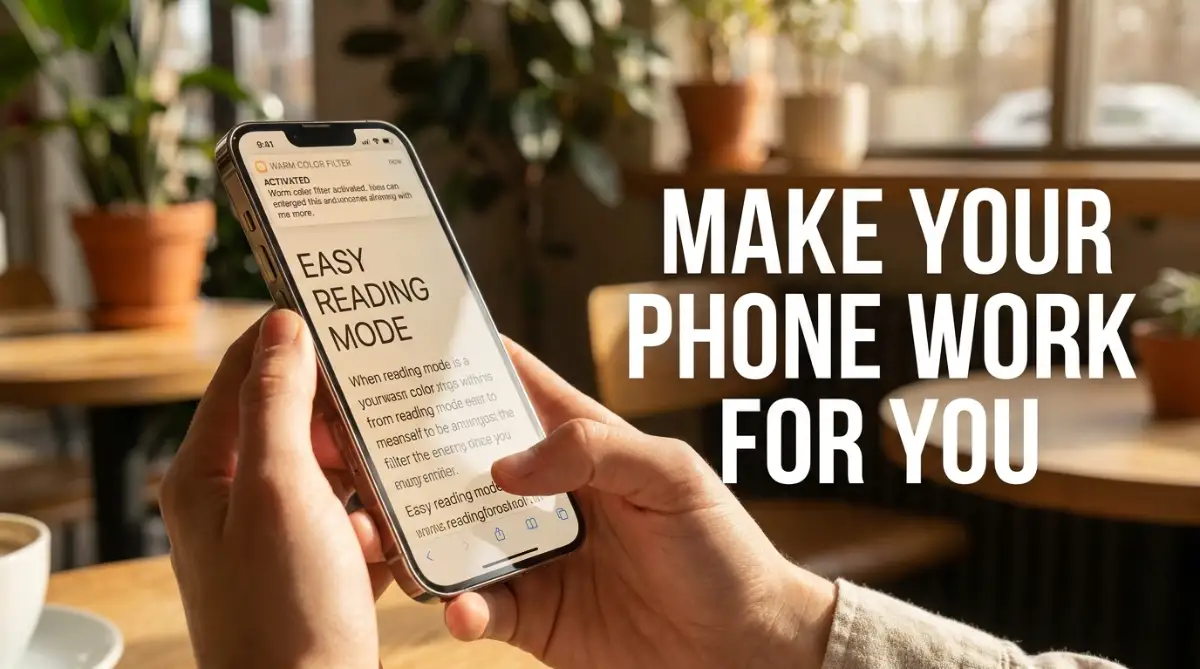
How to Make Your Phone Work for You
It is time to stop letting your device dictate how you live and work. The menus we are about to explore are generally hidden under a tab called "Accessibility" in your main settings app. While these tools were designed for specific needs, they offer massive benefits for absolutely everyone.
Let us look at some highly practical, science-backed settings you can change right now. These adjustments will immediately lower your stress levels and make your screen time significantly more comfortable.
Taming the Blinding Light (Visual Comfort)
Most of us already know about dark mode, but dark mode alone is not enough to stop severe eye strain. Your phone screen emits sharp, high-intensity light that forces your pupils to work overtime. This constant adjustment tires out the tiny muscles in your eyes, leading to those painful evening headaches.
To solve this, you need to find the setting called Reduce White Point. This is entirely different from just turning down the screen brightness.
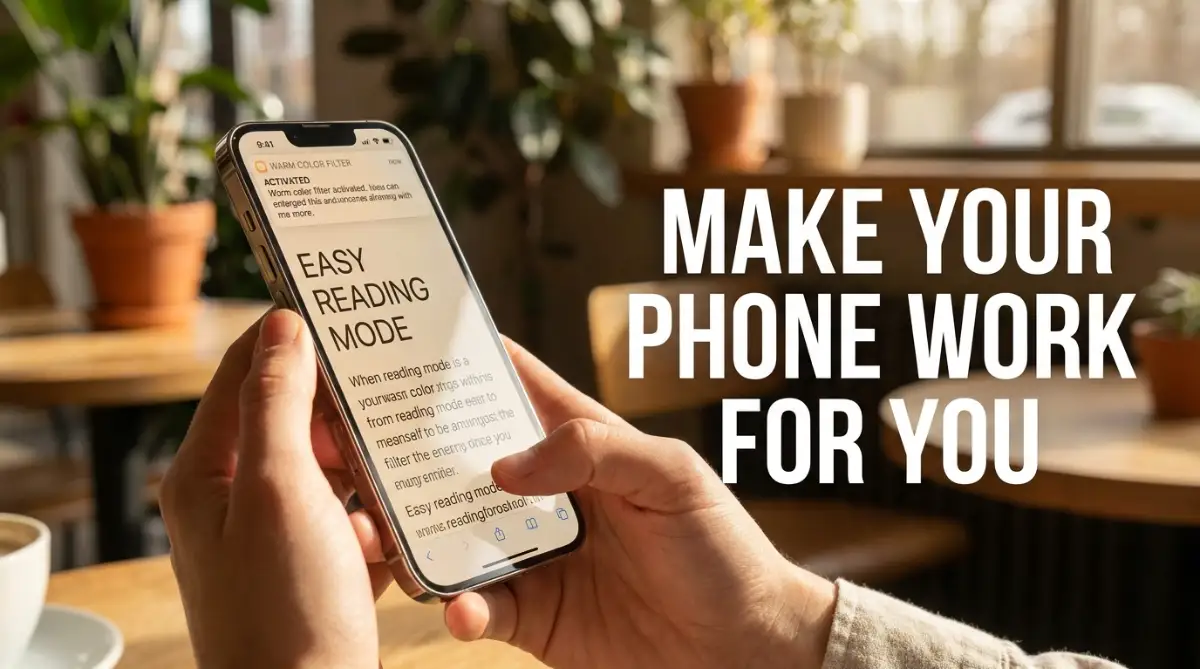
Reducing the white point physically changes the intensity of the bright colors on your display. It takes away the harsh, glaring edge of white backgrounds, making your screen look like a soft piece of printed paper. If you read articles in bed at night, turning this feature on will completely change how you sleep.
My Personal Pro Tip: I actually set up a special shortcut on my phone so that clicking the side button three times automatically turns on the "Reduce White Point" feature. I use this trick every single night when the lights go out in my house, and my evening eye pain has completely disappeared.
The Magic of Back Tap Gestures
Physical buttons on phones are disappearing, which means we have to swipe and tap screens more than ever. But what if the entire back of your phone could act as a hidden, invisible button? Both major smartphone operating systems now offer a feature commonly known as Back Tap.
This setting uses the internal sensors of your device to feel when you lightly tap the back of the phone case. You can program a double-tap or a triple-tap to do almost anything you want.
Imagine walking to your car in a pitch-black parking lot with your hands full of heavy grocery bags. Instead of fumbling to unlock your screen and find the flashlight app, you just tap the back of your phone twice with your index finger.
The flashlight turns on instantly. You can also set this gesture to take a quick screenshot, open your camera, or pull up your favorite music app. It is like adding an extra, customizable button to your phone for free.
Your Digital Guard Dog (Sound Recognition)
We live in a world filled with constant noise, and we often use headphones to block it all out. While noise cancellation is great for focusing on work, it can also be incredibly dangerous. You might easily miss the sound of a fire alarm, a baby crying in the next room, or someone knocking on your front door.
Here is exactly how to stop missing the important things:
Modern smartphones have a deeply hidden feature called Sound Recognition. When you turn this on, your phone constantly listens to your environment using advanced machine learning.
It does not record your private conversations. Instead, it listens for specific acoustic patterns, like running water, a dog barking, or a smoke detector. When it hears one of these specific sounds, it will instantly vibrate and flash an urgent notification on your screen.
This is incredibly helpful if you work from home with heavy headphones on all day. You can set your phone to alert you only when the doorbell rings. You will never miss a package delivery again, and you will stay completely aware of your surroundings without actually having to listen to them.
Taking Control of Your Reading Habit
We spend hours reading long emails, lengthy news articles, and heavy reports on small glass screens. This heavy reading load is terrible for our posture and our vision. The solution is to let your phone do the hard work for you by using the Spoken Content features.
Deep in your accessibility settings, there is an option that allows your phone to read the screen out loud. You can highlight a giant wall of text in a complicated email and have a highly natural-sounding voice read it to you.
You can even adjust the reading speed to make it faster or slower depending on your preference. This is perfect for busy mornings when you need to get ready for work.
You can put your phone on the bathroom counter and have it read your morning news while you brush your teeth. It turns every single article on the internet into a customized mini-podcast just for you.
Breaking Down a Common Tech Myth
Many people are terrified to turn these features on because they worry about their battery life.
-
The Myth: Leaving background accessibility features running will completely drain my phone battery by lunchtime.
-
The Reality: Modern smartphone processors are incredibly highly efficient. Features like Back Tap and Sound Recognition use a dedicated, low-power chip inside your phone. You will likely not notice any difference in your daily battery life at all.
Creating a Safe Space (App Pinning)
Handing your unlocked phone to another person is always a terrifying experience. You might want to show your friend a funny photo from your recent vacation. But as soon as you hand them the device, you start worrying they might swipe too far and see private text messages.
If you have young children, the fear is even worse. A toddler can easily delete important work emails or accidentally buy expensive games while watching a cartoon. The ultimate solution to this heavy anxiety is a feature called Guided Access or App Pinning.
Normal Phone Use vs. Guided Access
When you activate this setting, it completely locks the phone onto the current app on the screen. The person holding the phone cannot go to the home screen, they cannot open your messages, and they cannot change your volume.
They are trapped in that one specific app until you enter a secret passcode to release them. This gives you complete peace of mind when sharing your highly expensive device with curious friends or energetic kids.
Enlarging the World Around You
As we get older, our eyes naturally lose the ability to focus on tiny details. Reading a heavily stylized menu in a dimly lit restaurant can quickly become a frustrating struggle. Most people try to use their normal camera app to zoom in on the text, but it is often blurry and hard to read.
Your phone actually has a hidden, dedicated Magnifier tool built directly into the operating system. This tool is completely different from your standard camera app. It is specifically engineered to sharpen tiny text, increase the contrast of faded ink, and automatically turn on the flashlight in dark rooms.
You can use it to easily read the tiny serial numbers on the back of your television or the confusing instructions on a medicine bottle. By adding this specific tool directly to your control center, you basically carry a powerful digital magnifying glass with you everywhere you go.
It is these small, thoughtful adjustments that truly change how we experience our daily lives. When you take the time to set up your device properly, you stop fighting against the technology. Instead, the technology finally starts doing exactly what it was always meant to do: support you silently and effectively.
Next-Level Device Customization Secrets
Now that you have adjusted your screen brightness and set up some basic gestures, it is time to go deeper. The real magic happens when you start combining these hidden features to fit your exact daily routine. You can essentially program your device to act as a personalized digital assistant.