The Disappearing Freedom of a Tethered Machine
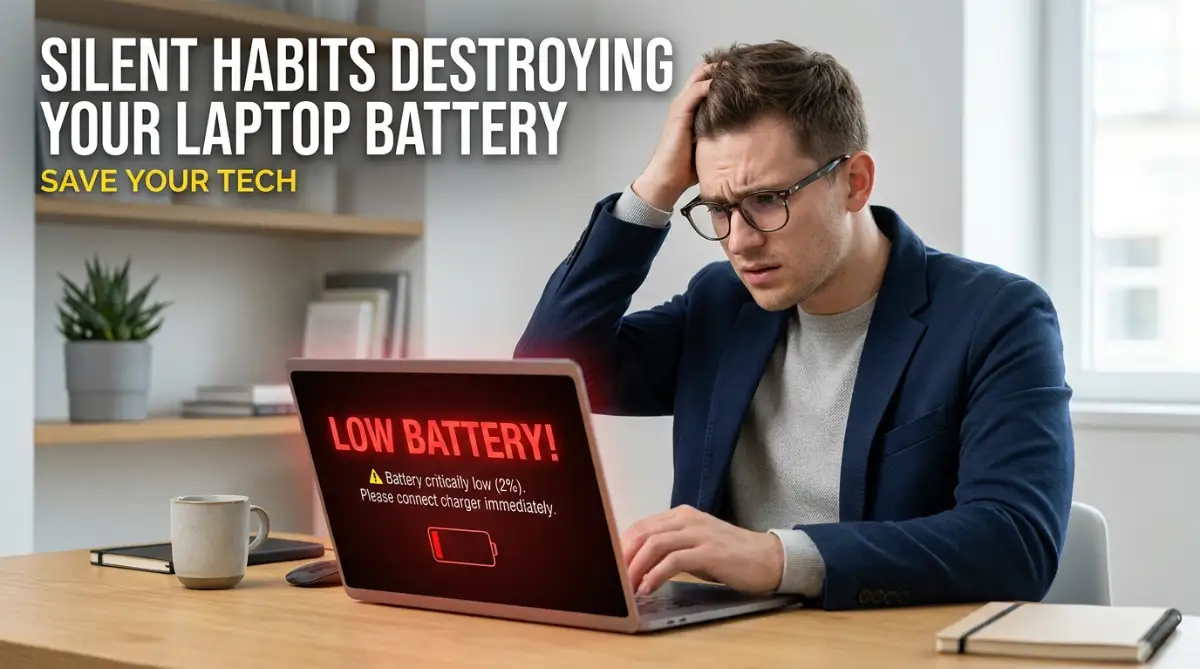
You grab your laptop, sit on the couch, and instantly get hit with the "10% Battery Remaining" warning. Sound familiar? I used to drag my heavy charging brick everywhere, feeling like my expensive, portable computer was permanently chained to the wall. The crazy part? I was accidentally killing my own battery every single day. Today, I will show you the exact daily habits that are silently destroying your laptop, and how you can easily fix them right now.
For the first few months, you could take that machine anywhere. You could work from the couch, watch movies in bed, or sit at a coffee shop for hours without ever looking for a wall outlet.
Your laptop was actually a laptop. It was portable, reliable, and completely untethered.
But then, something slowly started to shift. You did not notice it immediately, but the battery percentage started dropping just a little bit faster every week.
Today, you live in a constant state of low-level anxiety. You cannot leave a room without carrying your heavy charging brick.
If you sit at a cafe, your eyes immediately scan the walls for a power socket. Your expensive, portable machine has basically become a desktop computer with a really short leash.
You might think that batteries naturally just die fast, and there is nothing you can do about it. But that is simply not the truth.
The reality is much harder to accept. We are often the ones actively destroying our own hardware.
Without even realizing it, you repeat small daily mistakes that literally torture the chemical cells inside your machine.
I remember buying my dream laptop and feeling so happy to work from my favorite cafe for hours without worrying about messy cords. But within just a year, the battery started dying in less than an hour, leaving me constantly panicked and searching for a wall plug. I felt so frustrated carrying a heavy charger everywhere, completely unaware that my own comfortable daily habits were secretly ruining my expensive machine.
Today, we are going to expose these hidden actions so you can stop the damage right now.
 Your Action Plan (In 30 Seconds)
- Stop suffocating it: Never put your laptop directly on a bed or pillow. Always use a hard surface to keep the vents clear.
- Unplug the extras: That tiny wireless mouse dongle and external drive will drain your battery even when the laptop is asleep.
- Use the 80% rule: Do not keep it at 100% all day long. Keep your charge between 20% and 80% to save the chemical cells.
- Watch out for swelling: If your trackpad feels stiff or your keyboard is bulging up, turn the machine off immediately.
Decoding the Invisible Threats to Your Hardware
To solve a problem, you have to understand the root cause. We often treat our laptops like magical boxes of endless power.
We forget that they are highly sensitive electrical engines. Every action you take on your keyboard has a direct physical reaction inside the machine.
Let us break down exactly what you are doing wrong every single day. We will look at the exact science of why these habits are so harmful, and what you should do instead.
Suffocating the Machine: The Soft Surface Trap
This is arguably the most common mistake made by laptop owners worldwide. After a long day, you want to relax.
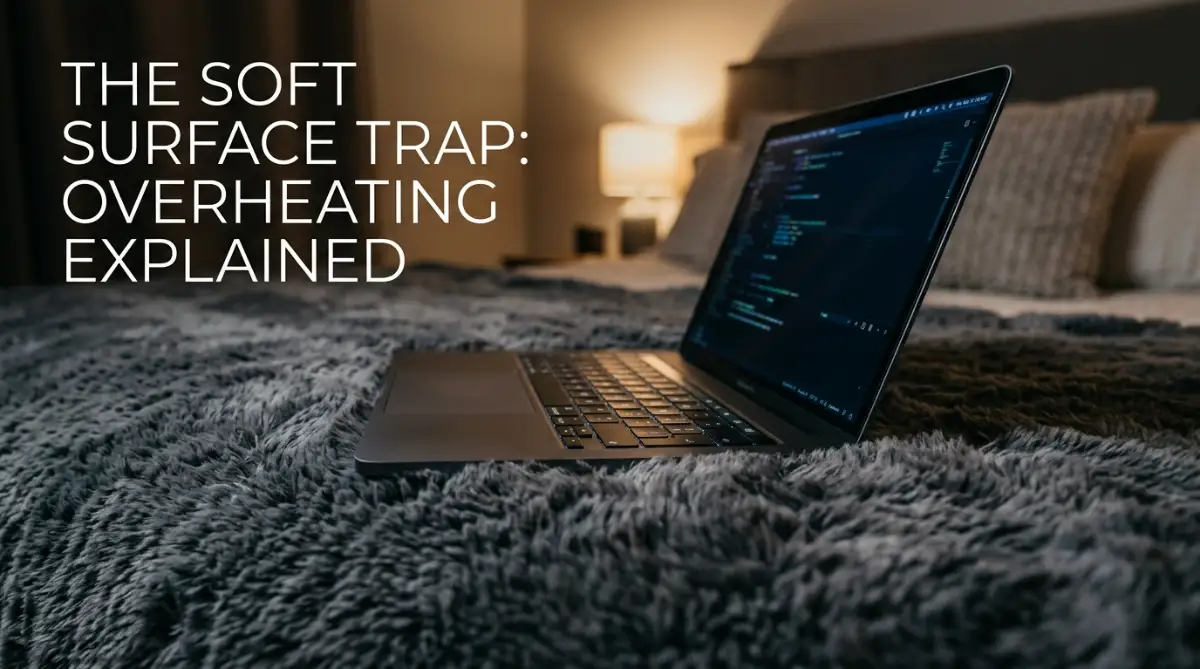
You take your laptop, crawl into bed, and place the computer directly onto your heavy quilt or soft pillows to watch a movie. It feels incredibly cozy, but you are slowly suffocating your device.
Most modern laptops have their main air intake vents located on the bottom of the chassis. When you place the machine on a soft surface, the fabric completely blocks those tiny vents.
Think of your laptop like a marathon runner. To keep performing, it needs to breathe in cool air and push out hot air.
When you block the vents, the hot air gets trapped inside the case. The temperature of the internal components skyrockets instantly.
Your computer panics and spins the internal fans at maximum speed, trying desperately to find cool air. This loud fan noise is basically your laptop crying out for help.
The internal heat bakes the lithium-ion battery sitting just inches away from the processor. High temperatures permanently destroy the chemical ability of the battery to hold a charge.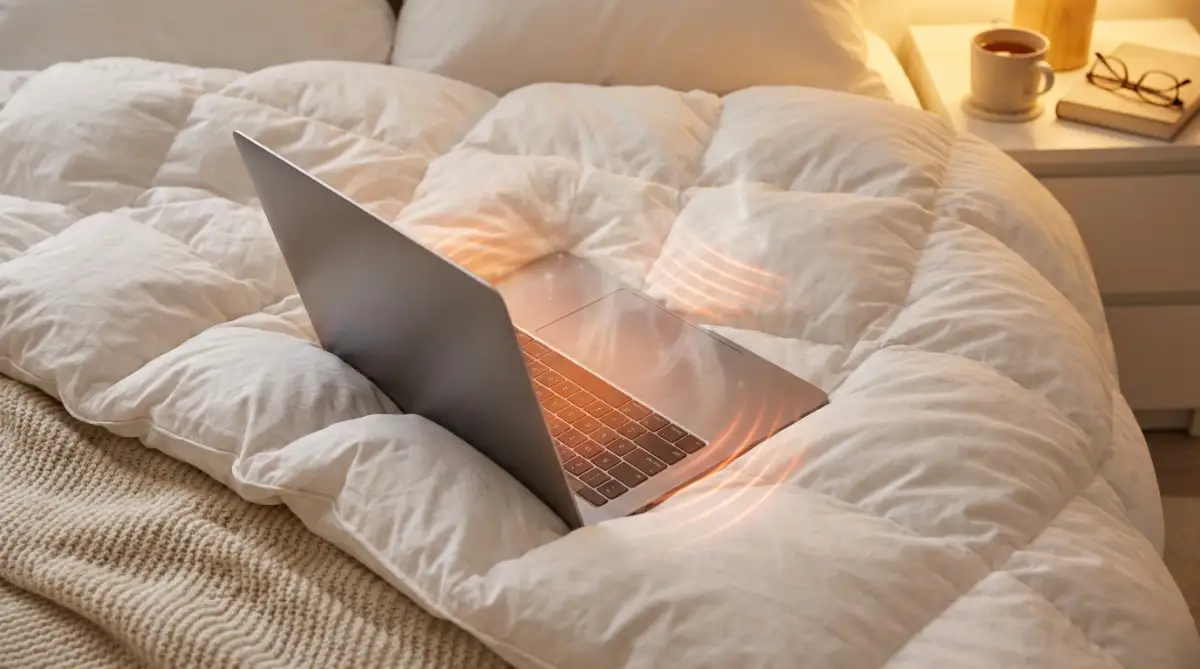
The Simple Fix: Always place your laptop on a hard, flat surface. If you want to use it in bed, invest in a cheap wooden lap desk or a cooling pad to keep the air flowing properly.
For a long time, I made the terrible mistake of watching movies late at night with my laptop resting directly on my fluffy blanket. I finally realized that trapping all that heat was literally cooking my battery, and switching to a simple wooden lap board completely stopped the loud fan noises overnight.
Laptop Cooling: Myth vs. Reality
| The Lie We Believe | The Actual Truth |
| :--- | :--- |
| "My soft blanket keeps the laptop safe from scratches." | It suffocates the bottom vents and bakes the battery alive. |
| "Laptop cooling pads are a waste of money." | A simple $15 mesh pad can drop internal temps by 10 degrees. |
| "Fan noise means the laptop is working hard, which is fine." | Max fan noise means your laptop is choking and begging for cool air. |
The Hidden Weight of Digital Clutter
We all have a terrible habit of keeping too many things open at once. You might have thirty Google Chrome tabs open right now.
You probably have a music player running in the background, a chat application open, and three different word documents minimized. You might think this is just multitasking, but your hardware feels it as physical weight.
Every single tab and application you keep open requires active memory, known as RAM. Your computer has to supply a constant stream of electricity to the RAM to keep those frozen tabs ready for you.
When your RAM gets completely full, your computer does something desperate. It starts using your hard drive as temporary memory.
This process requires a massive amount of electrical power from the battery. Your machine is working twice as hard just to keep your messy digital workspace alive.
Expert Insight: Closing unused tabs does not just organize your mind; it physically stops your battery from bleeding power. Treat your open applications like lights in your house. If you are not in the room, turn the light off.
Leaving USB Devices Plugged In Unnecessarily
This is a silent drain that almost nobody thinks about. You plug in a wireless mouse receiver, an external hard drive, or a fancy backlit keyboard.
When you finish working, you close the laptop lid and walk away, leaving everything connected. Here is the problem with that habit.
Even when your laptop is sleeping, those connected devices are still slowly drinking power directly from your battery motherboard. Your external hard drive is sitting there spinning occasionally, waiting for commands.
That tiny wireless mouse dongle is constantly sending radio signals looking for a mouse. Over a period of ten hours, these tiny power draws add up to a significant loss of battery life.
You might wake up your sleeping laptop to find you lost fifteen percent of your power overnight for absolutely no reason.
The Simple Fix: Make it a daily habit to unplug all external drives and accessories when you shut down for the day. Disconnecting physical hardware stops the electrical drain instantly.
Thermal Torture: The Car Dashboard Mistake
We previously touched on heat, but environmental heat is a completely different beast. Sometimes we are in a rush and leave our bags inside a parked car.
During a sunny day, the inside of a car basically turns into a greenhouse oven. The temperature can easily reach levels that literally melt plastic.
Leaving your laptop in this environment is the fastest way to murder your battery cells. Inside your battery, lithium ions physically move back and forth between two distinct layers.
When exposed to extreme environmental heat, the chemical liquid that helps these ions move starts to break down and crystalize. Once those crystals form, the damage is completely irreversible.
The battery loses its physical capacity permanently. Even worse, extreme heat can cause the battery to physically swell up.
If you notice your laptop keyboard bulging upward or the trackpad becoming hard to click, stop using it immediately. A swollen battery is a severe fire hazard.
Never leave your expensive tech inside a hot vehicle. Always take your bag inside with you, even if you are just grabbing a quick coffee.
The Blinding Glare of Maximum Brightness
Your laptop screen is easily the most power-hungry component on your entire device. Pushing light through millions of tiny pixels requires an astonishing amount of electricity.
Many people have a bad habit of keeping their screen brightness locked at one hundred percent all day long. They do this even when sitting in a dark, dimly lit room.
This is incredibly wasteful. Your eyes do not need maximum brightness unless you are sitting outside under direct sunlight.
Every single notch you lower the brightness translates directly into saved battery minutes. Lowering your brightness from maximum to fifty percent can easily give you an entire extra hour of usage.
Get into the habit of manually adjusting your screen based on your room lighting. Better yet, turn on the auto-brightness feature in your system settings.
Let the built-in light sensor do the heavy lifting for you. It will naturally dim the display when the sun goes down, saving both your battery life and your eyesight.
Ignoring System Updates for Months
Nobody likes seeing that annoying pop-up telling you to restart your computer for an update. We almost always hit the "remind me tomorrow" button.
Weeks turn into months, and your machine is running on outdated software. You might think updates only add new visual features, but they do so much more behind the scenes.
Hardware manufacturers constantly discover new ways to make the internal processor run more efficiently. They release software patches that fix small bugs causing your battery to drain too fast.
When you ignore these updates, you force your computer to keep running on old, inefficient logic. You are basically refusing free performance upgrades.
Take ten minutes at the end of your week to let the machine update itself. Keeping your operating system fresh is a highly effective way to maintain long-term power stability.
The Background Sync Blackhole
Finally, we need to talk about what your computer does when you are not looking. Applications love to run hidden tasks in the background.
Cloud storage apps like Dropbox, OneDrive, and Google Drive are constantly searching your hard drive for changes. The moment you save a small file, they instantly fire up the Wi-Fi card to upload it to the internet.
Email applications constantly ping servers every thirty seconds to see if you received a new message. All of this background communication requires constant electrical power.
If you are trying to survive the next three hours on a low battery, pause your cloud syncing immediately. Turn off background app refresh in your system settings.
By stopping these invisible tasks, you force the battery to focus entirely on the application you are actively using right now. You take control of your power instead of letting background apps steal it silently.
Mastering Your Laptop's Power Efficiency (Advanced Strategies)
Now that we have identified the silent mistakes, it is time to take full control of your machine. You do not need a degree in computer science to maintain excellent battery health.
You just need to adopt a few advanced habits that professionals use to keep their laptops running for years. These strategies work quietly in the background, saving your hardware from unnecessary stress.
Let us look at some powerful adjustments you can make to your daily routine right now.
The Golden Rule of Charge Thresholds
Most people treat their laptop battery like a gas tank in a car. They plug it in, fill it up to one hundred percent, and drive it until it hits zero.
As we discussed earlier, this is a terrible idea for modern lithium-ion batteries. Think of your battery like a human stomach at a massive buffet dinner.
If you eat until you are completely stuffed, you feel incredibly uncomfortable and stressed. If you starve yourself for days, you feel weak and exhausted.
Your laptop battery feels the exact same physical stress when it sits at one hundred percent or drops to zero percent. The absolute best way to extend the lifespan of your machine is to keep the charge between twenty percent and eighty percent.
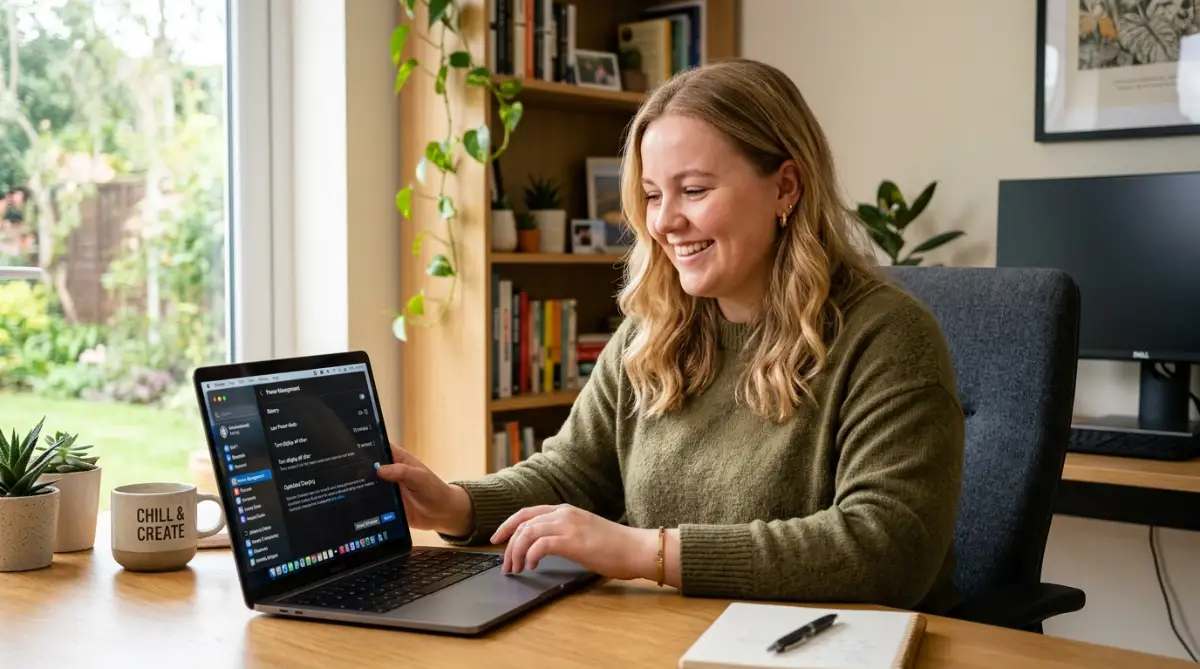
Many modern laptops actually have built-in software to help you manage this automatically. Brands like Lenovo, Dell, and Apple include a specific "Optimized Battery Charging" feature in their system settings.
When you turn this setting on, the computer physically stops accepting power once it hits eighty percent. You can leave the laptop plugged into the wall all day, and the battery will never overcharge. Understanding how to manage this energy flow is highly recommended by engineering experts who study lithium-ion battery degradation and safety at national laboratories.
Want to see exactly how the 20-80% charging rule actually protects your laptop battery from dying early? Watch this short, helpful video below to see the science in action, and then keep reading to discover how your hidden startup apps are secretly stealing your power!
Managing the Hidden Startup Army
When you press the power button on your laptop, an invisible battle begins behind your screen. You might think you are just loading your desktop wallpaper, but your computer is actually launching dozens of hidden programs.
Every time you install a new piece of software, it usually gives itself permission to launch the moment your computer turns on. Spotify, Skype, Adobe Creative Cloud, and various gaming launchers all fight for your processor's attention at the exact same time.
This creates a massive spike in electrical demand. Your battery has to push an extreme amount of power just to get you to the login screen.
Pro Tip: You need to become the strict manager of your startup applications. On Windows, open your Task Manager and click the "Startup" tab. On a Mac, go to System Settings and check your "Login Items."
Disable everything that you do not actively need the second you turn on your computer. If you want to listen to music, you can open Spotify manually later.
By keeping your startup list completely clean, your computer boots up faster and uses significantly less battery power. Additionally, auditing these hidden background processes helps you spot unauthorized software, which is a great way to prevent the hidden dangers of browsing without antivirus protection from ruining your operating system.
Smart Bluetooth and Wi-Fi Management
Wireless connectivity is amazing, but it is also a massive power drain. When you leave your Bluetooth turned on, your laptop acts like a desperate radio station.
It constantly sends out invisible signals, endlessly searching the room for a mouse, a keyboard, or wireless headphones to connect with. Even if you are not using any accessories, the Bluetooth radio is actively draining your battery.
The same rule applies to your Wi-Fi card. If you are sitting on an airplane or working offline in a park, your laptop is still aggressively scanning the area for available internet networks.
This constant searching behavior forces the battery to supply steady power to the wireless antennas. If you are working on a strictly offline document, do yourself a huge favor and turn on Airplane Mode.
Cutting off all wireless communication instantly adds a surprisingly large chunk of time to your remaining battery life. It is a tiny habit that produces immediate, highly visible results.
Real-Life Scenario: The Coffee Shop Worker
Imagine a freelance writer named Sarah. She sits at a cafe for four hours every single day writing articles on her laptop.
Previously, her laptop would die after just two hours. She was keeping her screen at maximum brightness, leaving her Bluetooth searching for devices, and ignoring her startup applications.
One day, Sarah simply lowered her screen brightness to fifty percent. She turned off her Bluetooth and closed five heavy background applications.
Without buying any new hardware, her laptop easily survived the entire four-hour work session. The power was always there; she just needed to stop wasting it on invisible tasks.
 The Hidden Traps That Destroy Hardware Instantly
Understanding good habits is only half of the battle. We also need to talk about the terrible, destructive mistakes people make when they get desperate.
When a laptop starts losing its battery life, people often panic. They try to find cheap shortcuts and quick fixes to bring their machine back to life.
Unfortunately, these shortcuts almost always lead to permanent hardware damage. Let us look closely at the worst traps you must avoid at all costs.
The Cheap Charger Catastrophe
We have all been in this frustrating situation before. You are packing your bag for a trip, and you accidentally leave your original laptop charger plugged into the wall at home.
You go online and search for a replacement charger. The official brand charger costs eighty dollars, but you find a random, unbranded charger for just fifteen dollars.
You buy the cheap one, thinking you just found a brilliant deal. This is one of the most dangerous mistakes you can possibly make.
Inside your original charger, there is a complex set of safety components, including resistors and fuses. These tiny parts act as a security guard, making sure the electricity flowing from the wall is smooth and safe for your computer.
Cheap, unbranded chargers completely remove these safety features to save manufacturing costs. If there is a sudden power surge in your house, that cheap charger will send a massive spike of raw voltage directly into your laptop motherboard.
I have seen countless expensive laptops completely fried because someone wanted to save fifty dollars on a power brick. Always buy certified, high-quality chargers from trusted electronics brands. The Institute of Electrical and Electronics Engineers provides strict guidelines on consumer electronics safety standards for a very good reason.
Falling for Scam Optimization Software
When your computer feels slow and the battery drains quickly, it is very tempting to look for a magic solution. If you search the internet, you will find hundreds of software programs promising to "Double Your Battery Life Instantly!"
These programs are almost entirely scams. They do not fix your battery; they actually make the problem much worse.
These fake optimizers constantly run heavily in the background, aggressively closing other applications. Your processor ends up working twice as hard just to fight against the optimizer software.
True optimization requires understanding your natural system, not forcing a fake chemical or software shortcut. Delete any third-party battery boosters and use your operating system's native power management tools instead.
Ignoring the Warning Signs of Battery Swelling
This is a pitfall that goes beyond simple battery drain; it is a serious physical safety hazard. As lithium-ion batteries age and take heat damage, the internal chemicals begin to release a toxic gas.
Because the battery is sealed in a tight pouch, this gas has nowhere to escape. The battery physically begins to inflate like a small balloon inside your laptop case.
Many people ignore the early warning signs of this happening. You might notice that your laptop no longer sits perfectly flat on the table, wobbling slightly when you type.
You might feel that your trackpad has become extremely stiff and difficult to click down. Sometimes, the keyboard keys will literally start bulging upward toward the screen.
If you notice any of these physical changes, you must turn off the laptop immediately. A swollen battery is highly unstable and can easily catch fire if the internal pouch gets punctured by a sharp component.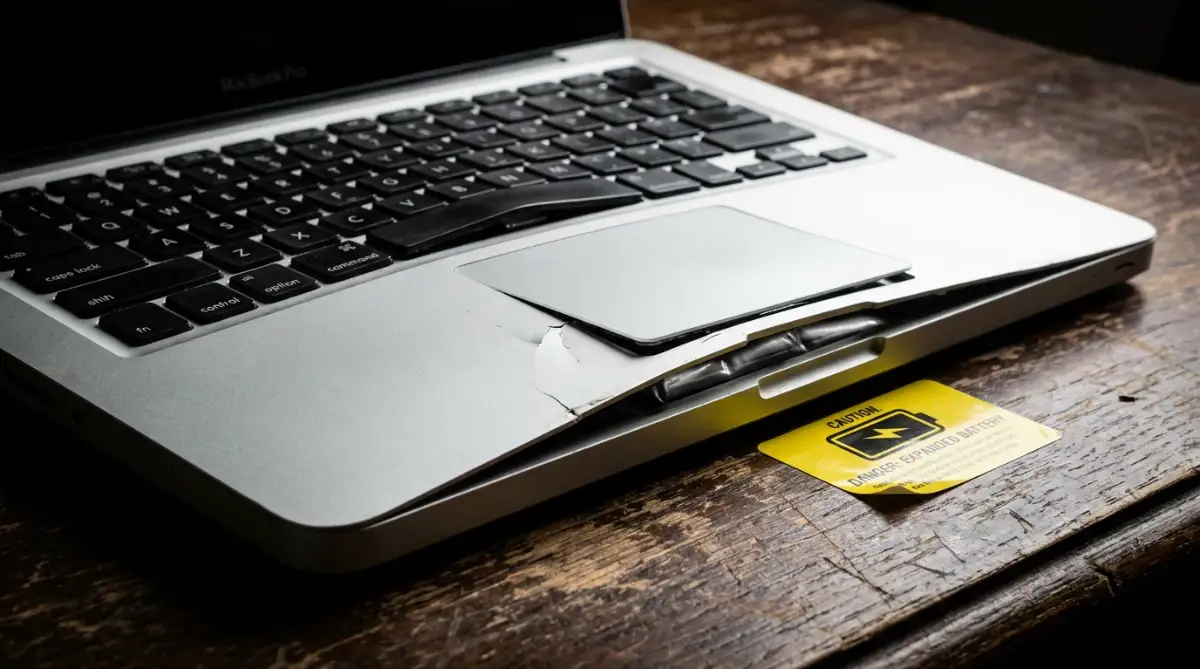
Do not try to press the laptop case back together. Take the machine directly to a certified repair professional to safely remove the damaged hardware.
Your Hardware Preservation Action Plan
Taking care of your expensive technology does not have to be a stressful burden. By simply becoming aware of how your machine actually works, you naturally start treating it better.
You are no longer a victim of mysterious battery drain. You now know exactly what causes your power to disappear, and you have the exact tools to stop it.
Just like you need a highly personalized approach to figure out how to identify your exact skin type at home, you need to learn the specific limits of your unique laptop. Some machines get hotter faster than others; pay attention to how your specific device behaves.
The Daily Power Checklist
To make everything incredibly easy, here is your personal action plan to start using right now. Follow these simple steps, and you will instantly notice a massive improvement in your daily power retention.
Do This Starting Today:
- Keep your laptop on a hard, flat desk to allow the cooling fans to breathe perfectly.
- Unplug external hard drives and wireless mice when you are finished working.
- Dim your screen brightness based on the lighting in your current room.
- Turn on the "Optimized Battery Charging" feature in your system settings.
Never Do This Again:
- Never leave your laptop sitting in a baking hot car on a sunny day.
- Stop buying incredibly cheap, unbranded replacement chargers online.
- Do not leave thirty heavy browser tabs open in the background while playing a game.
- Never place your computer directly on a fluffy blanket or pillow.
Your laptop is an incredible tool that connects you to the entire world. It helps you work, entertains you, and stores your most valuable digital memories.
Treating the hardware with a little bit of respect goes a very long way. Stop letting bad habits silently destroy your investment.
Make these small adjustments to your daily routine tonight. You will quickly regain that wonderful feeling of true, untethered freedom you had the day you first opened the box.
Changing my bad charging habits did not just save my laptop; it gave me back the absolute freedom to work from anywhere without feeling anxious. I promise that if you just keep your machine on a hard desk and unplug your USB devices tonight, you will see a massive improvement in your battery life right away. Take a deep breath, trust these simple steps, and get ready to finally enjoy your laptop the way it was meant to be used!
Disclaimer: The information provided in this blog post is strictly for educational and informational purposes. Laptop hardware, thermal limitations, and power management systems vary greatly depending on the manufacturer and specific model. Always refer to your original device manual and consult with certified technical professionals before making hardware changes or dealing with physically damaged batteries.